How it works
Fatbird runs a pickleball event from your phone: choose a format, add the players, share one link, and everyone enters scores as they play.
Getting started
The same for every game mode.
- 1
Start an event
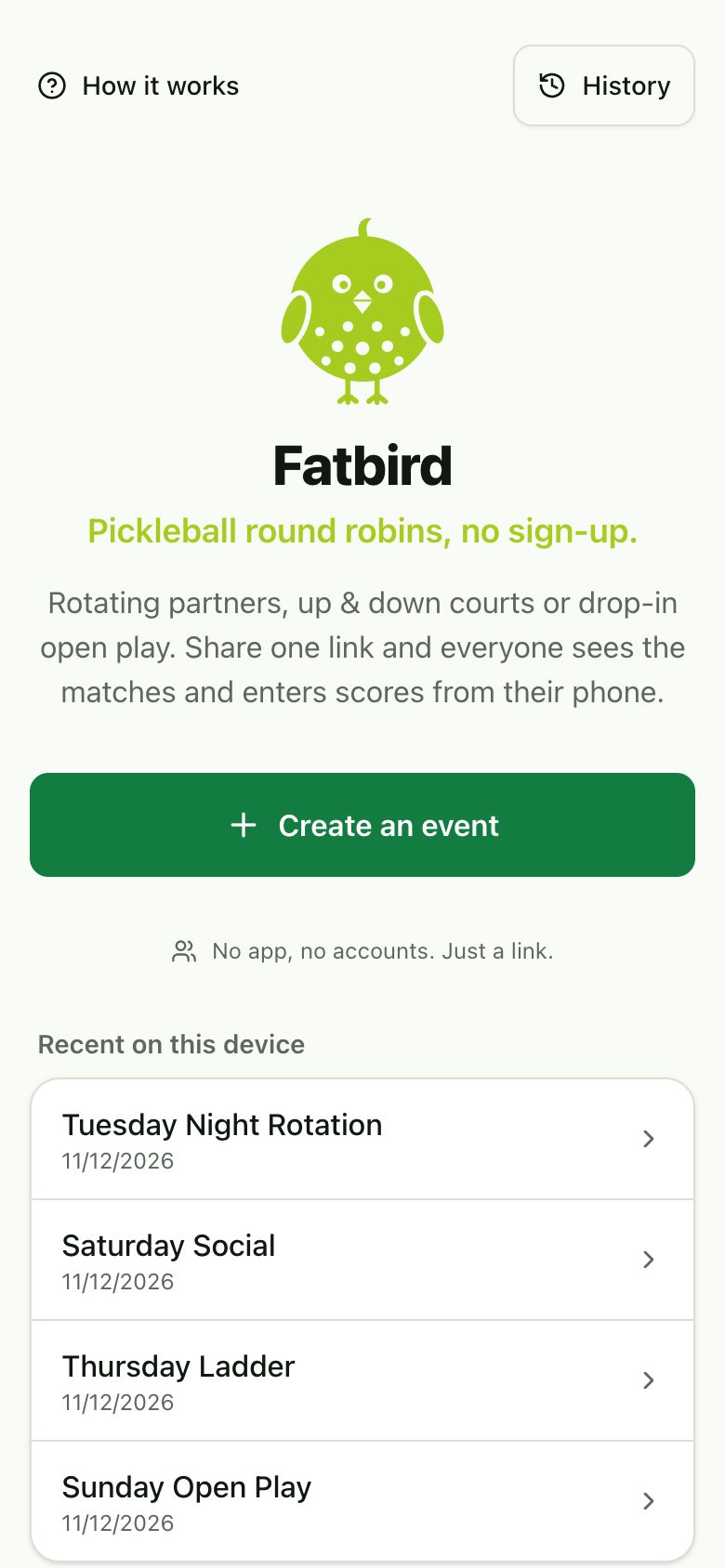
Tap Create an event on the home page. There are no accounts or sign-ups. Each event gets its own link.
- Events you’ve opened on this phone show up under “Recent on this device”.
- 2
Pick the format and the players
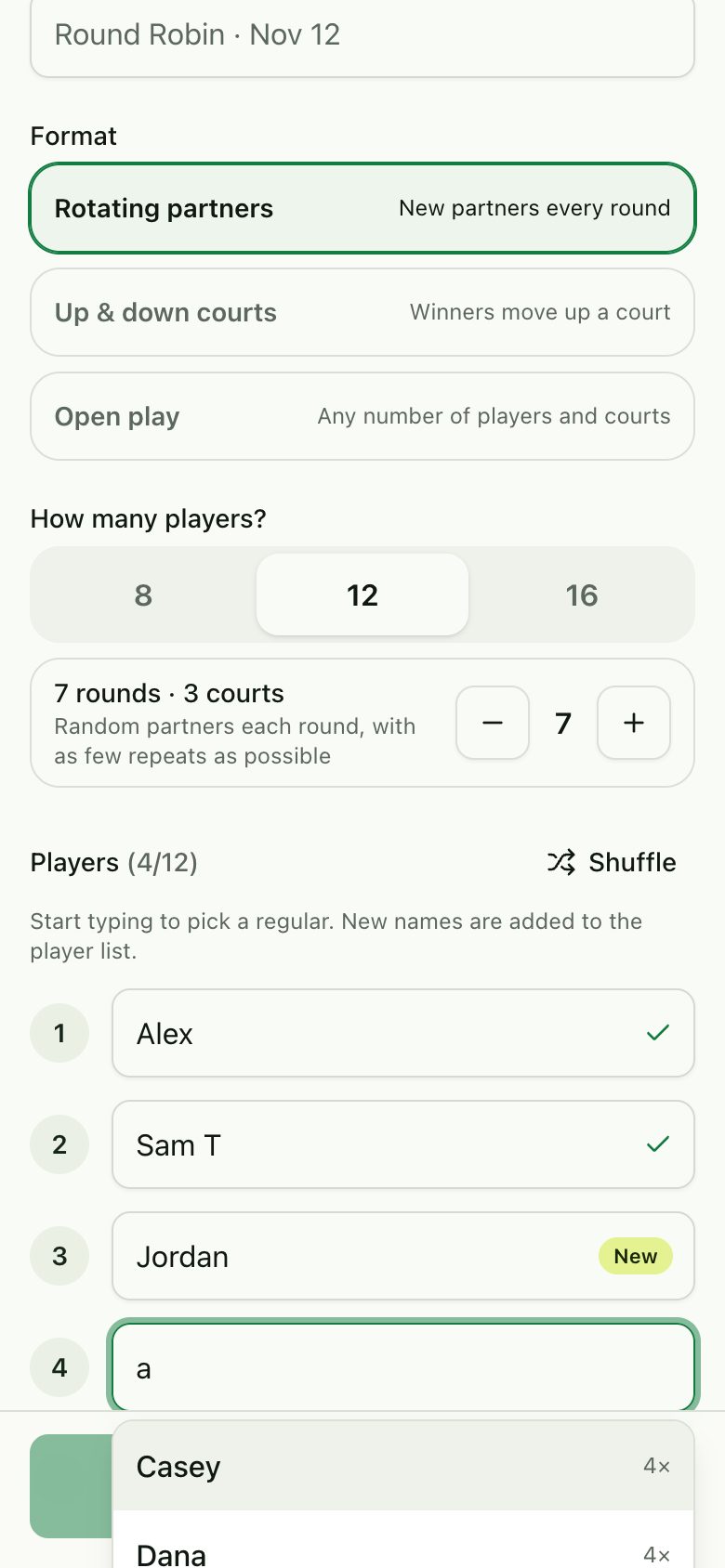
Choose a format: Rotating partners, Up & down courts or Open play (each is explained below). For the first two, choose 8, 12 or 16 players. Start typing in a slot to pick a regular, ordered by how often they play. Anyone new is added to the player list automatically.
- You choose the number of rounds for 12 or 16 players. Up & down courts also lets you choose it for 8.
- Shuffle mixes up the order of the players. For Up & down courts the order sets the starting courts: players 1–4 on court 1, 5–8 on court 2, and so on.
- 3
Two people with the same name?
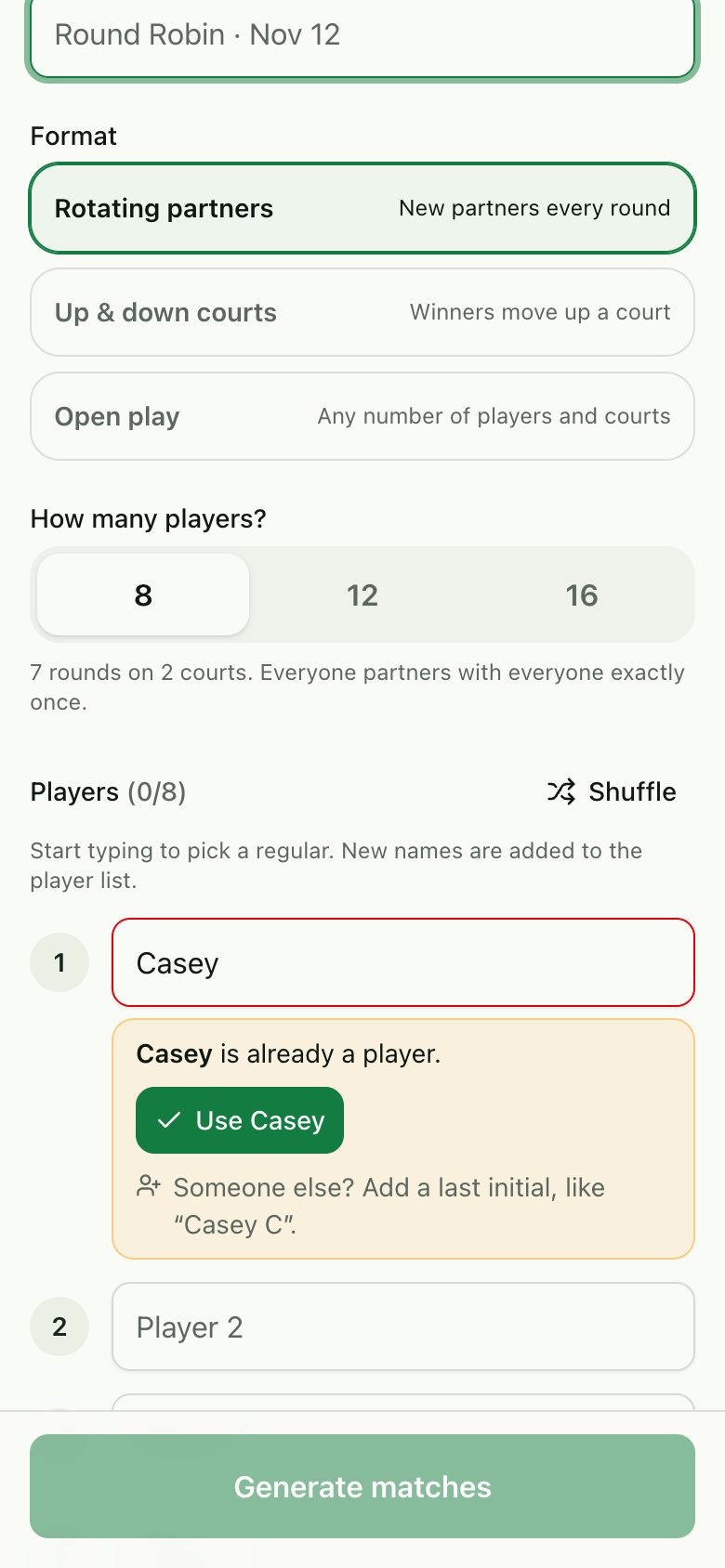
Every name is unique. If you type a name that already exists, you can use that player, or give the new person a distinct name: Sam → Sam T → Sam Taylor.
- 4
Share it with the group
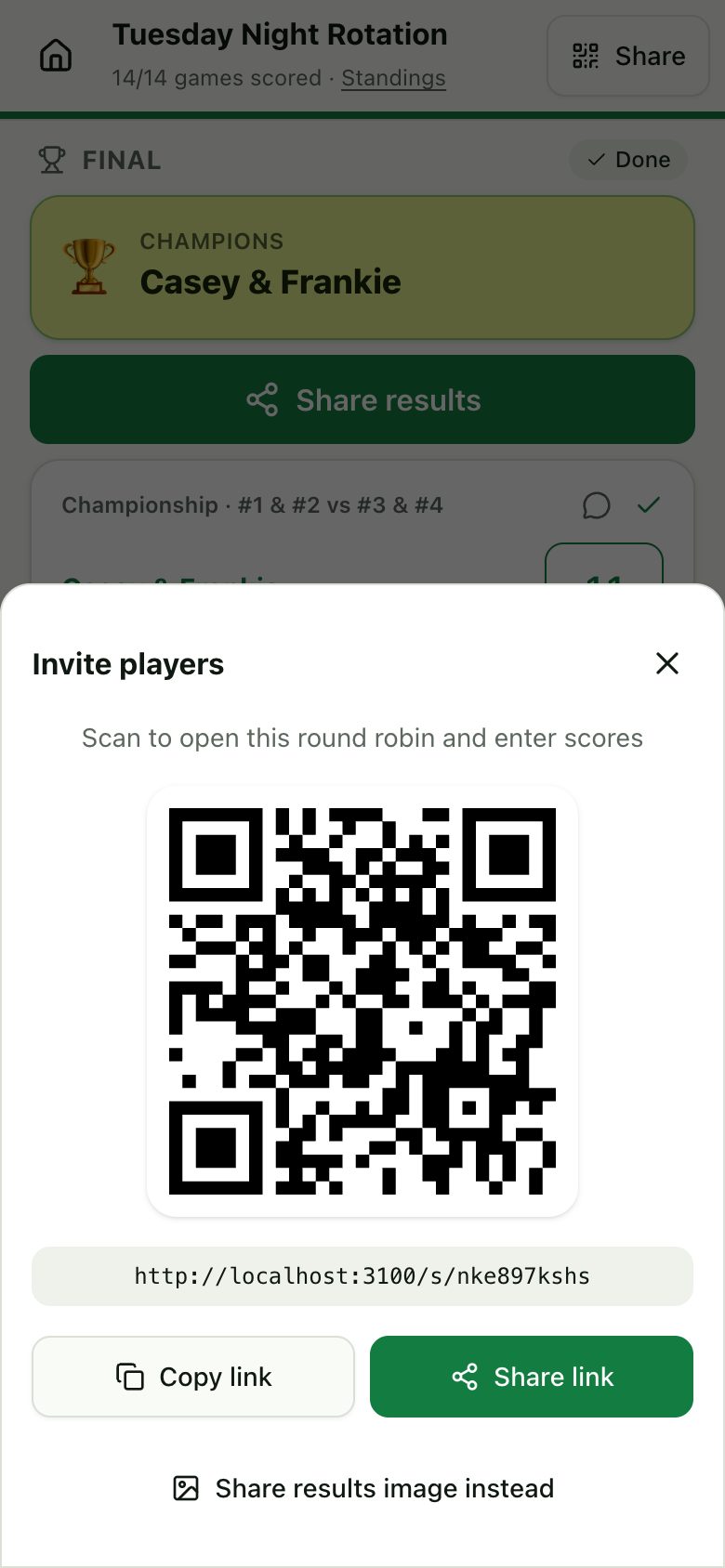
Tap Share at the top of the event page. Anyone can scan the QR code or open the link to see the matches and enter scores, with no app or login needed.
- 5
Say who you are
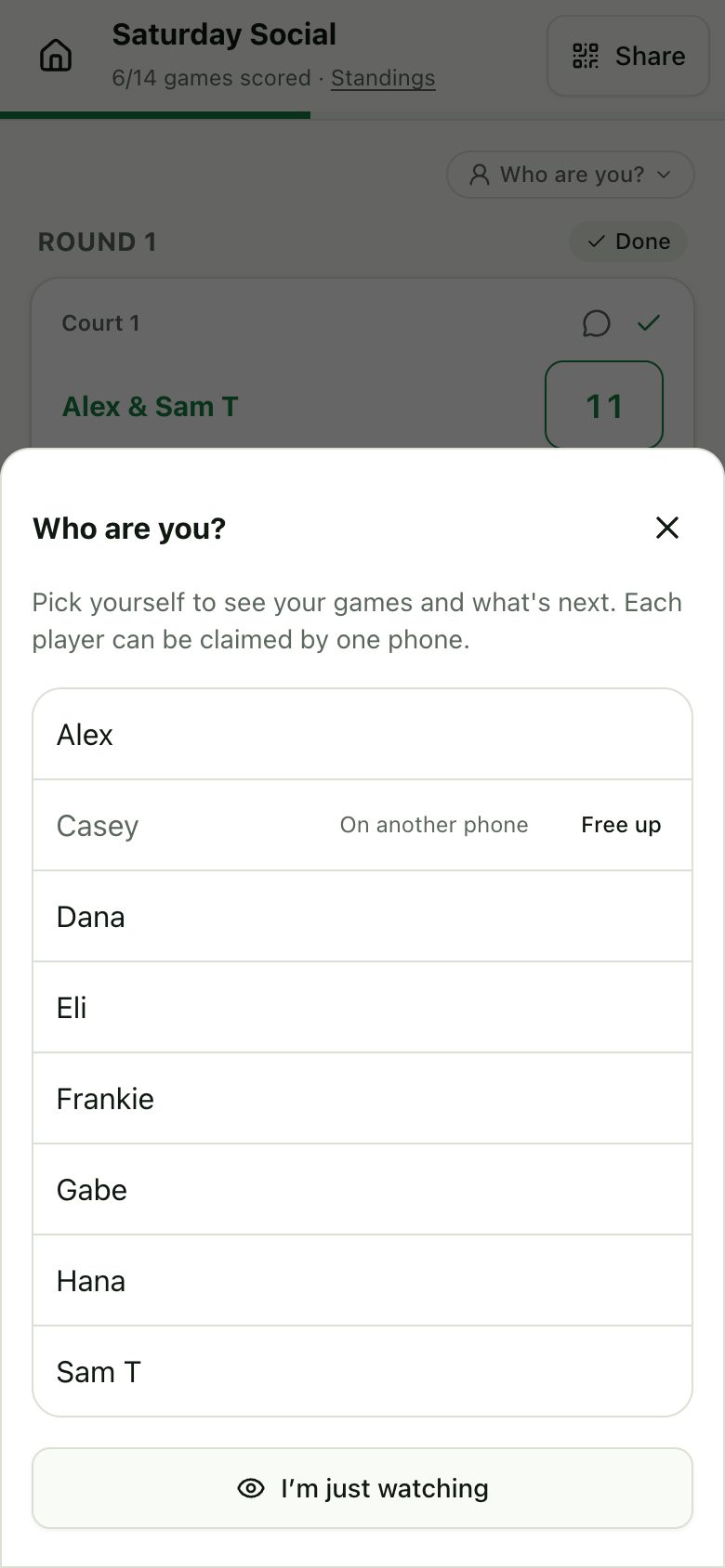
The first time a phone opens an event, a “Who are you?” sheet lists the players. Pick yourself to claim that player on this phone. “I’m just watching” skips it, and so does closing the sheet.
- Each player can be claimed by only one phone, and each phone can be one player per event. Names taken elsewhere show “On another phone”.
- Tap the chip above the matches (“You: Sam T” or “Who are you?”) to switch players or go back to watching. Switching frees your old player.
- In later events that include the same player, this phone is recognized automatically: you’re set as that player with a “Welcome back” message and no prompt. That doesn’t happen if someone else already claimed that player, or if the creator freed your claim.
- Picked the wrong person, or lost a phone? The phone that created the event sees Free up next to claimed names.
- 6
See your games
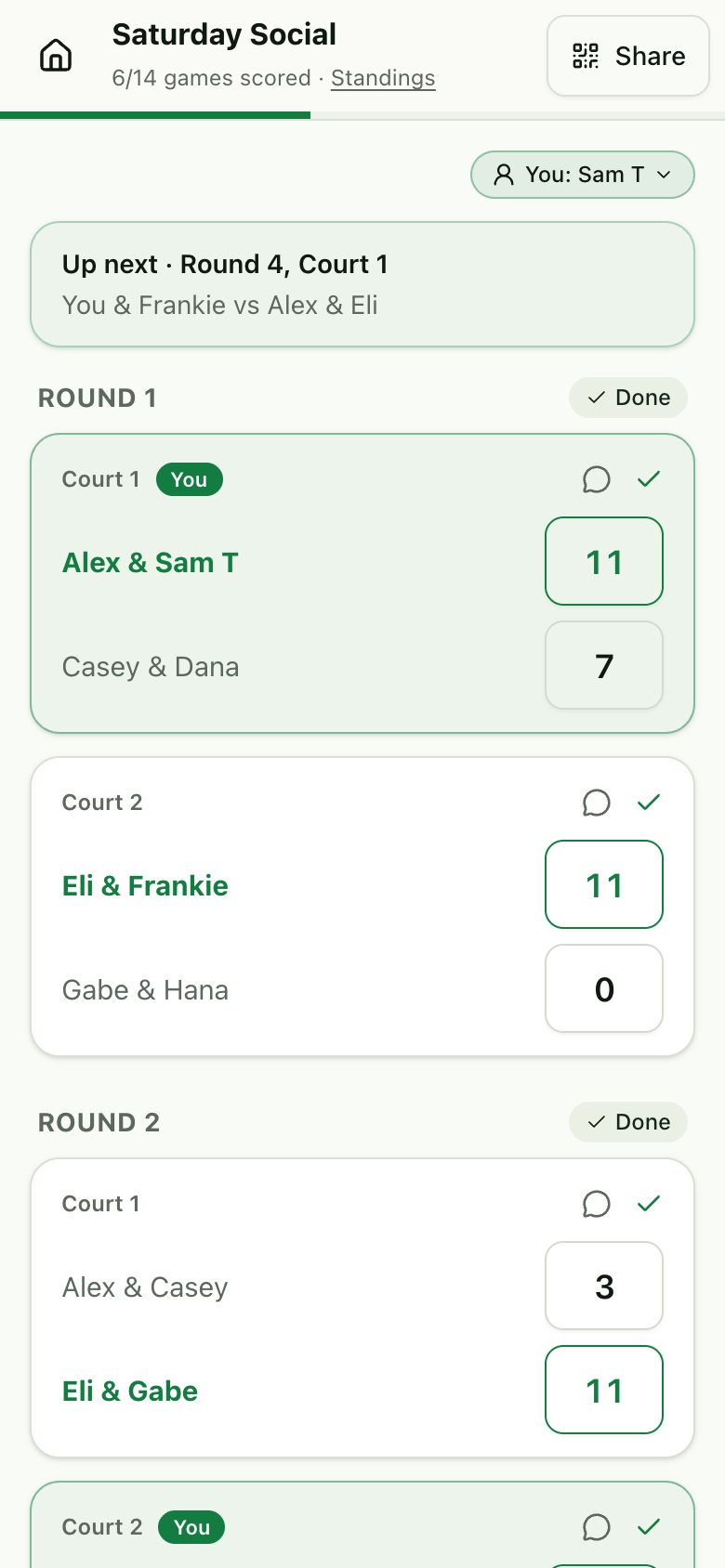
Once you’ve picked yourself, a banner shows what’s next: your court and partner, whether you’re sitting out, or that you’re waiting for the next round or the final. Your games get a “You” tag and a light highlight, and your row in the standings is marked “(you)”.
- 7
Enter scores as you play
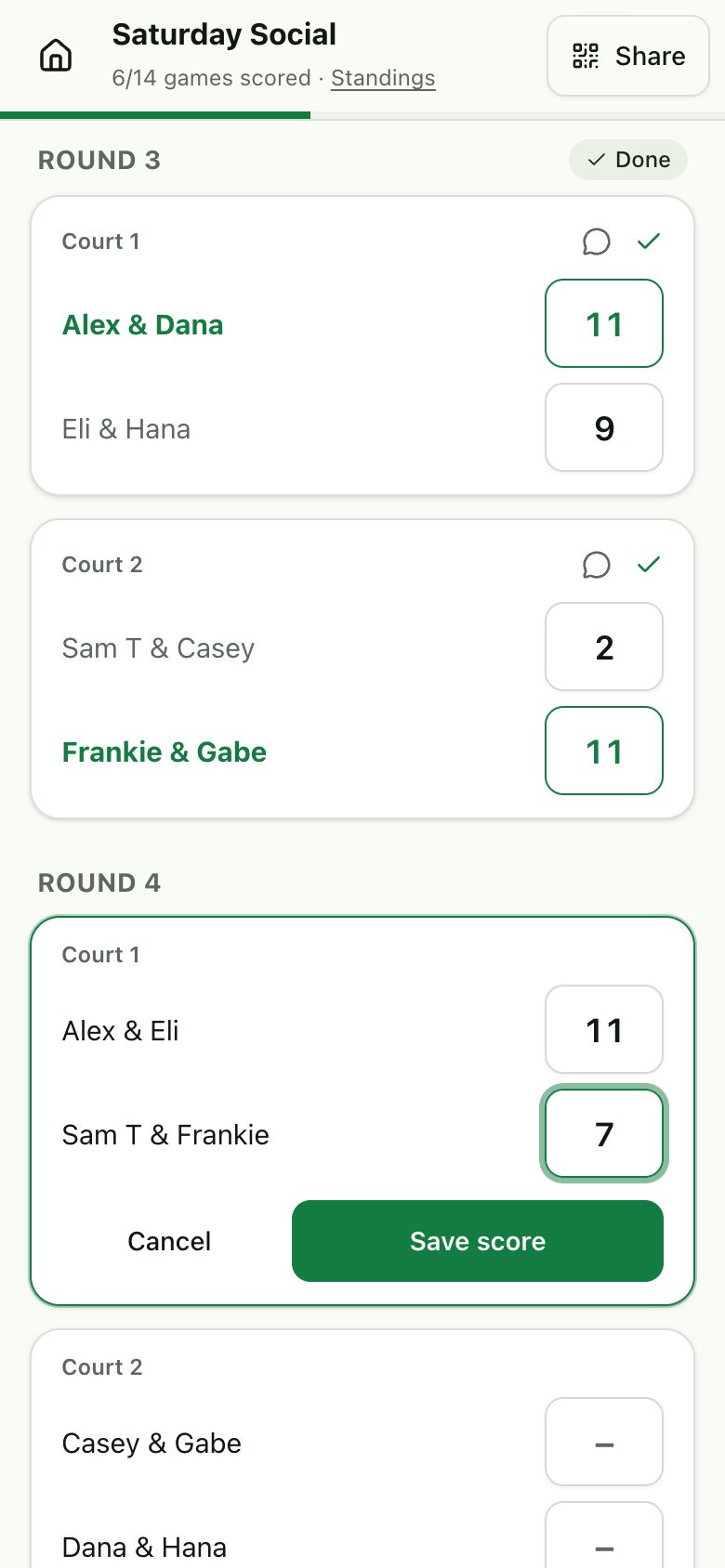
Type both teams’ scores and tap Save score. Every phone updates within a few seconds, so whoever is closest to the court can enter the score.
- Made a mistake? Change the numbers and save again.
- Games can’t end in a tie, and both scores are needed.
- 8
Look back any time
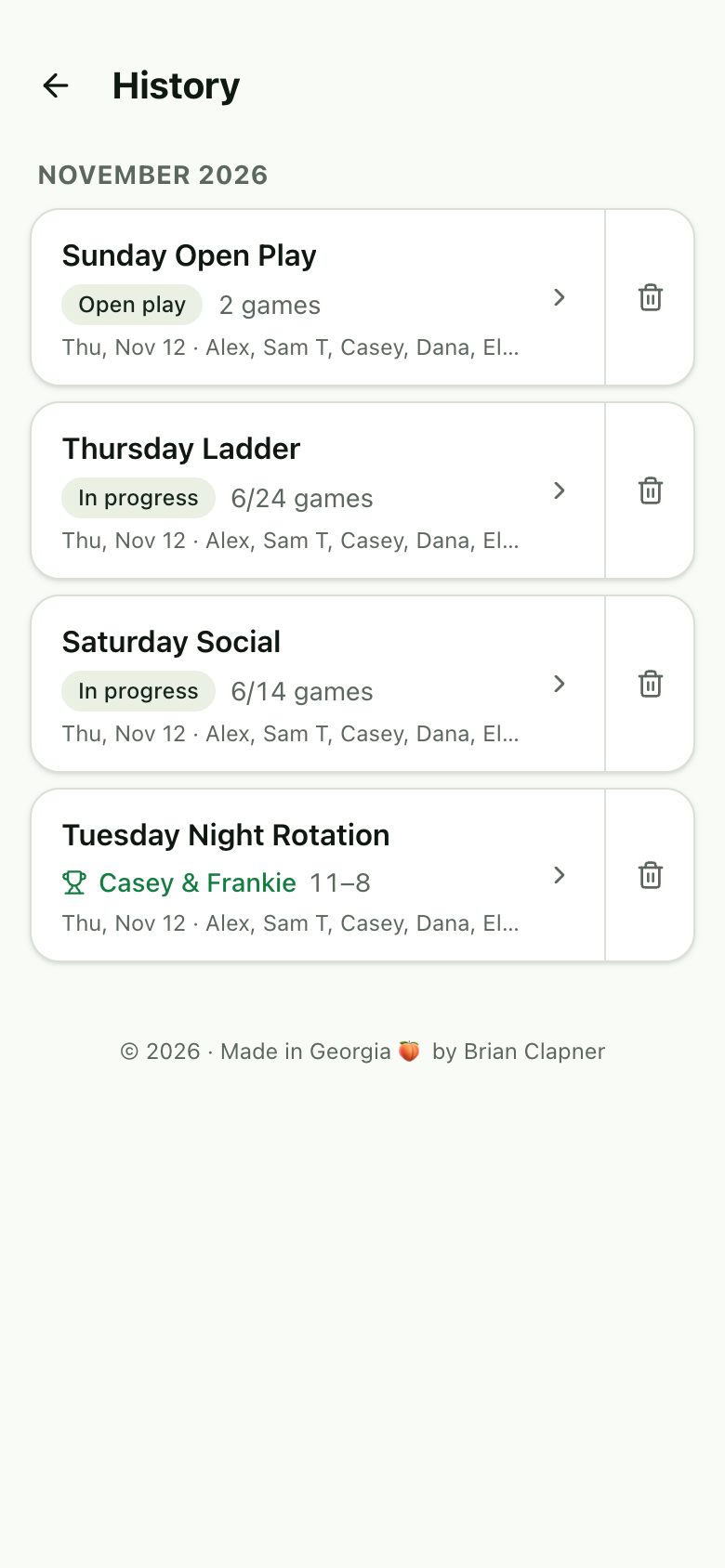
History, at the top right of the home page, lists every event that has been played, with its champions or how far it got. Finished Up & down events show as Complete, and Open play events show an Open play badge and their game count.
- 9
Cancel or delete an event
Only the phone or browser that created an event can delete it. At the bottom of the event page it sees Cancel event (while it’s in progress) or Delete event (once it’s finished). A confirmation asks first, because it deletes all games and scores for everyone and can’t be undone.
- In History, the creator’s device also gets a trash button on its own events.
- Anyone else who has a deleted event open sees “This event was deleted”.
- Events created before this feature can’t be deleted from the app.
Who can enter scores?
Anyone with the link. There’s no sign-in, which keeps it quick at the courts, so only share the link with your group.
Does everyone play every round?
In Rotating partners and Up & down courts, yes: 8, 12 and 16 players fill 2, 3 and 4 courts exactly, so nobody sits out. In Open play, players who don’t fit on the courts sit out and take turns.
Rotating partners
New partners every round, then a final between the top four. Best for finding an overall winner.
- 1
How partners rotate
With 8 players there are 7 rounds on 2 courts, and everyone partners with everyone exactly once. With 12 or 16 players there are 3 or 4 courts, and you choose 3 to 15 rounds (default 7). Partners are drawn at random with as few repeats as possible.
- 2
Follow the live standings
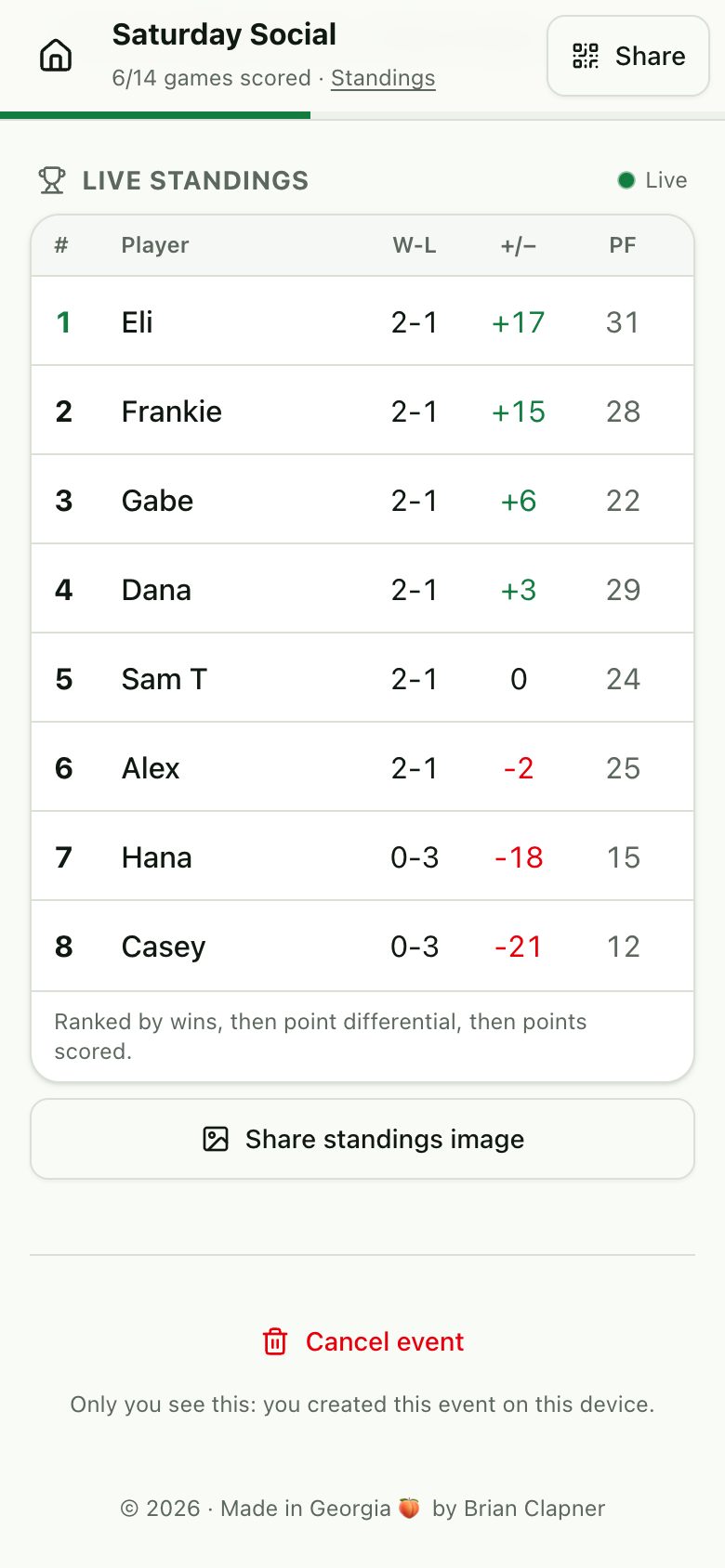
Standings are at the bottom of the page and update live. Players are ranked by wins, then point differential, then points scored.
- 3
Play the final
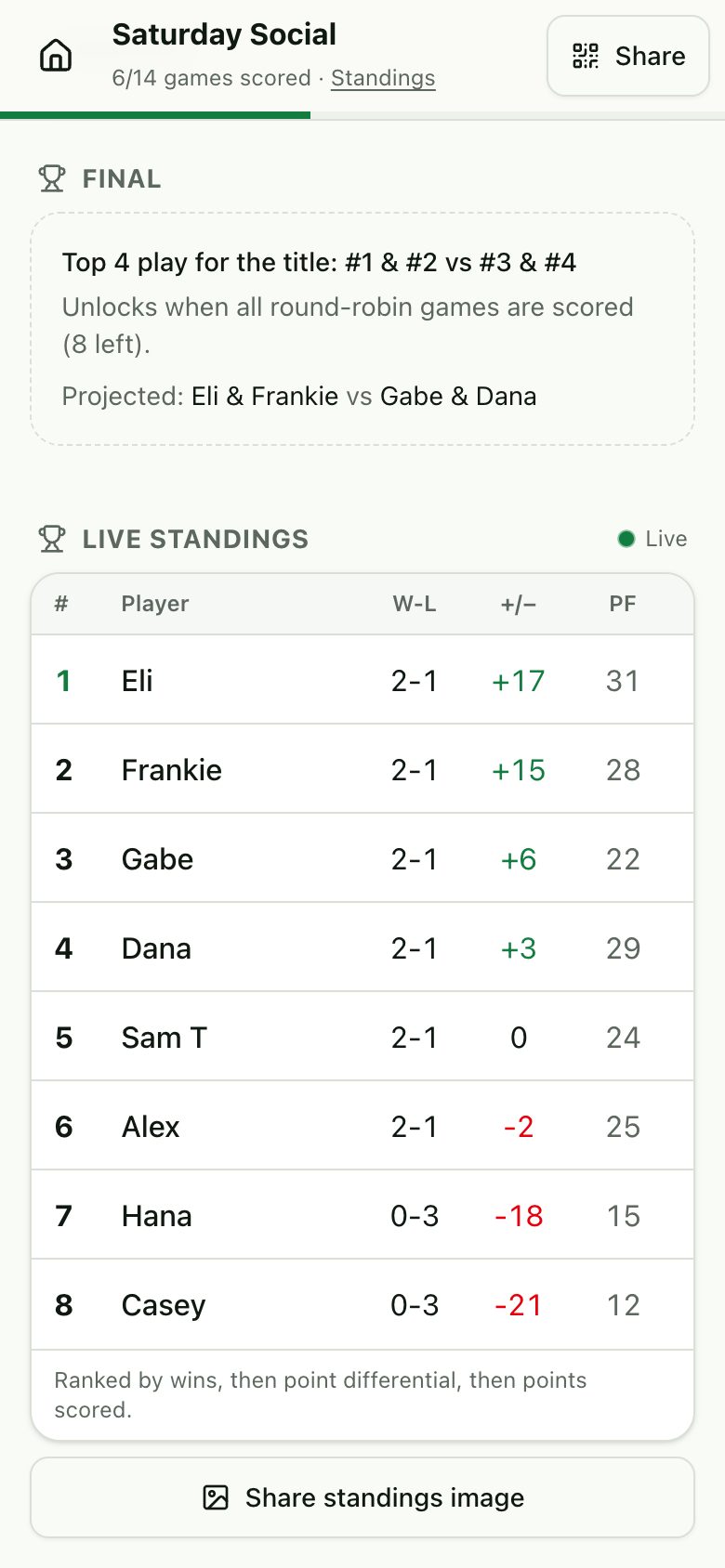
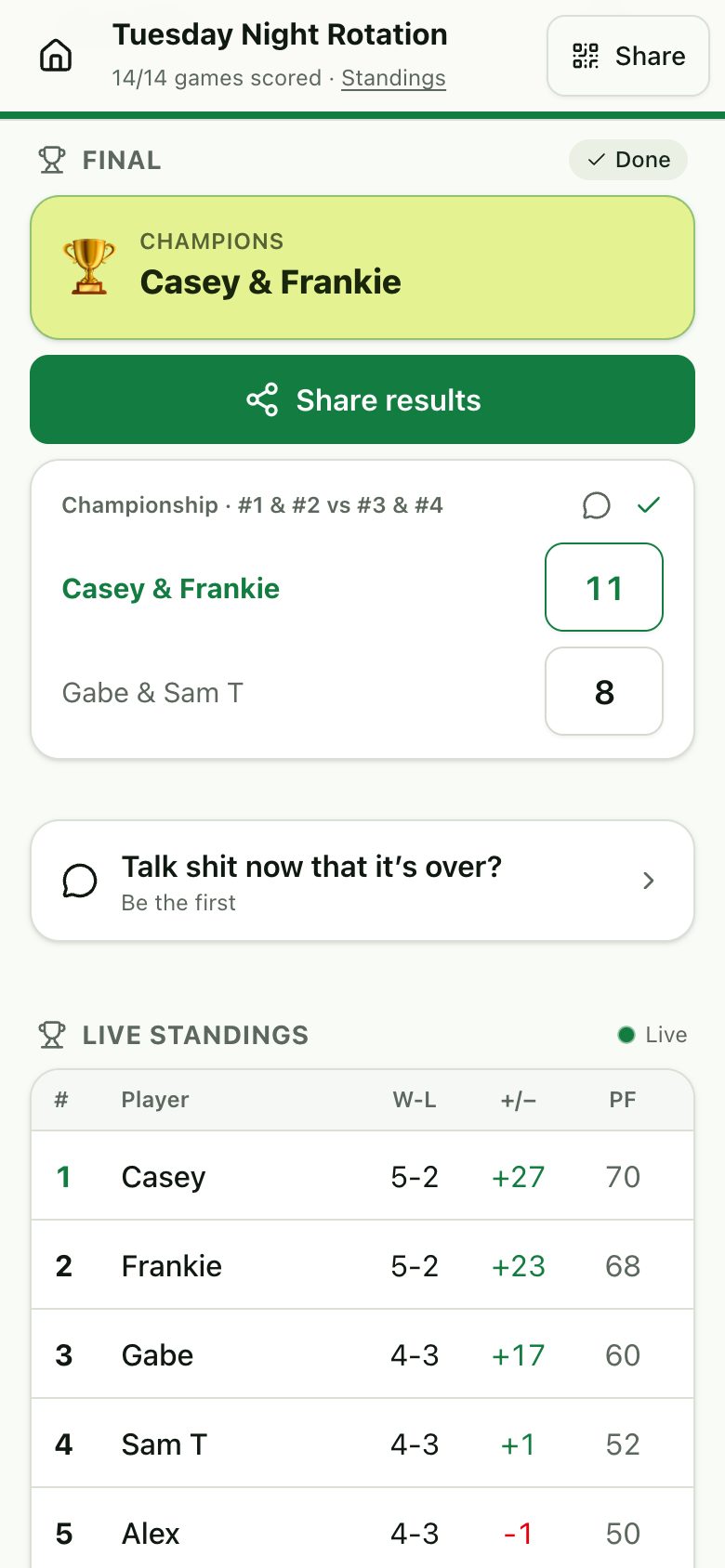
When the last round-robin game is scored, a championship game appears: #1 & #2 vs #3 & #4. Its winners are the champions.
- If an earlier score gets corrected before the final is played, the final re-seeds itself.
- The final doesn’t count toward the standings.
- 4
Share the results
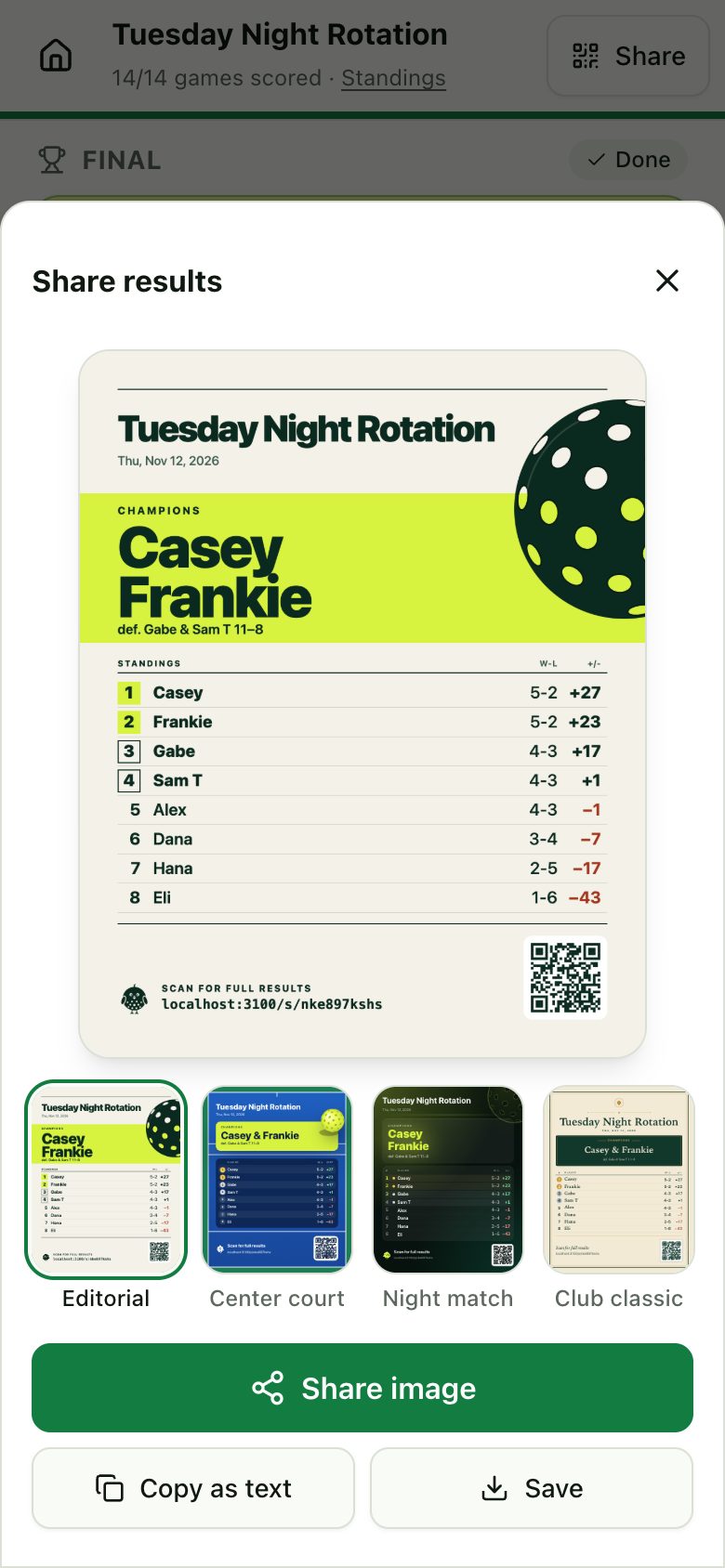
Tap Share results to make an image of the champions and standings for the group chat, with a QR code back to the full results. You can also copy the results as text.
- On the card, only the final’s winners get gold badges and its losers silver. Nobody else gets a medal, and there are none until the final is scored. The copied text uses 🥇 and 🥈 the same way.
- Up & down courts and Open play have no champions, so their card shows the standings with how many games and rounds were played.
- If the event has comments, you can add the top ones to the card (see Comments below).
How are ties in the standings broken?
By wins first, then point differential (points won minus points lost), then total points scored.
How are matches chosen for 12 or 16 players?
Each round is drawn at random, then players are swapped around to avoid repeat partners first and repeat opponents second. At 7 rounds nobody plays with the same partner twice.
Can I change a score after the final?
Yes, any game can be edited. Once the final has a score its teams are locked, so changes to earlier games won’t re-seed it.
Up & down courts
Winners move up a court, the rest move down. Everyone ends up playing people at their level. No final, no overall winner.
- 1
Courts and rounds
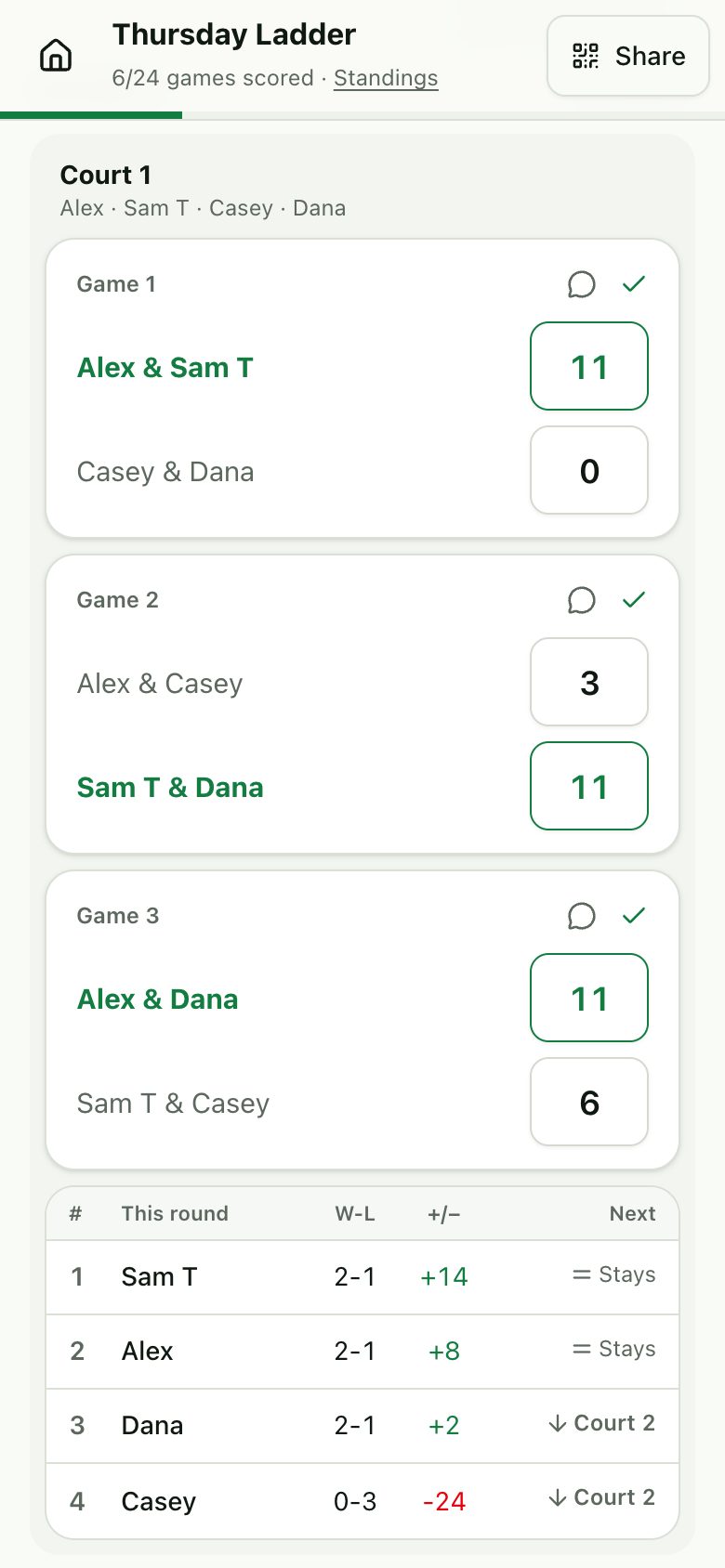
Each court’s 4 players play 3 games, partnering each other once. You choose 2 to 12 rounds (default 4). Rounds are shown court by court, and round 1 follows the order you entered the players.
- Later rounds show “Courts are set when round N is finished” until the round before is done.
- 2
Who moves
When every game in the round is scored, each court is ranked by wins that round, then point differential, then points scored. The top 2 move up a court and the bottom 2 move down, and the next round is created for you.
- The Next column shows ↑ Court, ↓ Court or = Stays.
- The top 2 on court 1 and the bottom 2 on the last court have nowhere further to go, so they stay.
- 3
Fixing a score
If the next round has no scores yet, it’s rebuilt from the corrected result. Once any game in the next round has a score, that round is locked and won’t change.
- 4
No final
There’s no final and no overall winner. When the last round is scored the event is Complete. The standings at the bottom still show everyone’s totals.
Open play
Drop-in games for any number of players and courts. Rounds are drawn one at a time, and people can come and go. No final, no winner.
- 1
Set up courts and players
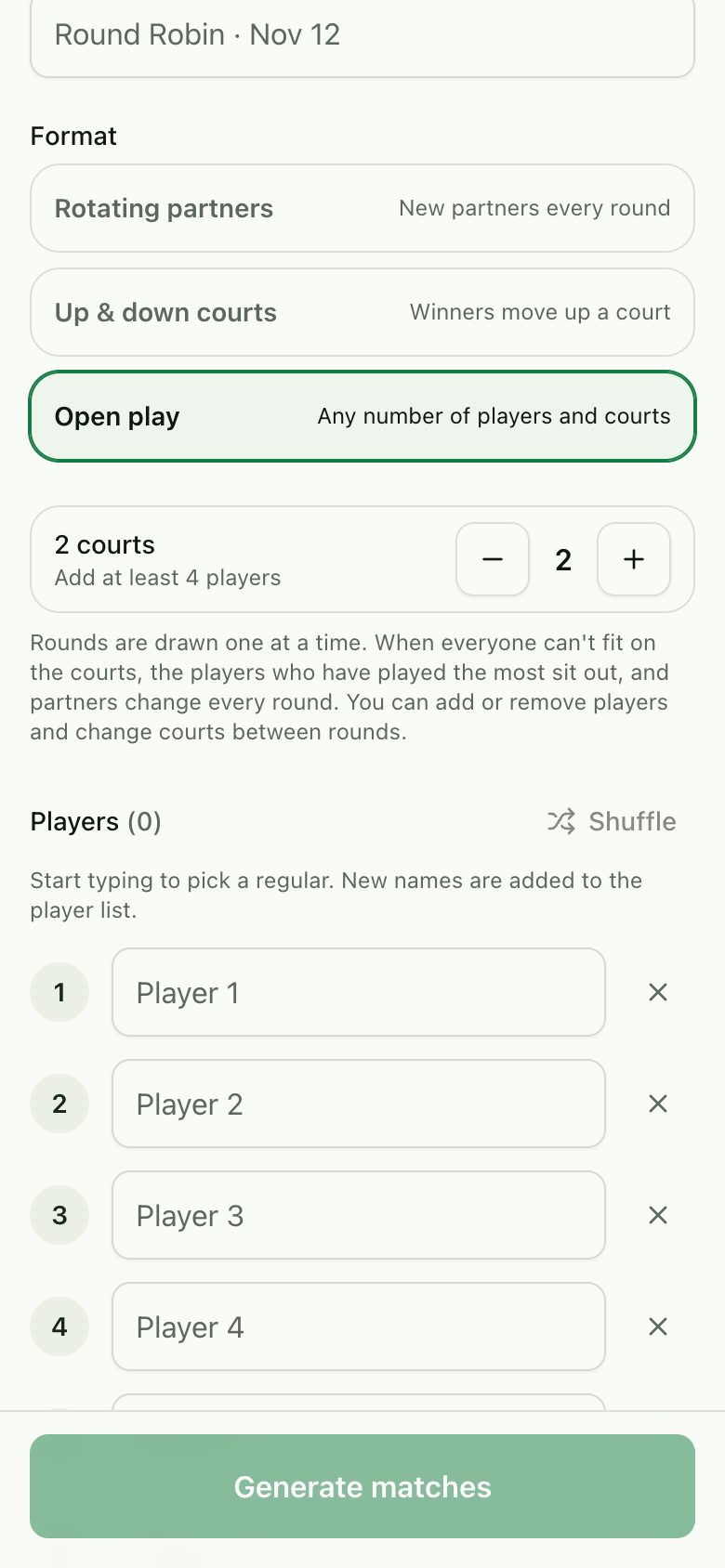
Choose Open play, then how many courts you have (1 to 12, default 2). There’s no player count to pick: add 4 to 48 players with the Add player button, and remove anyone with the ×. A line under the courts shows how many play each round and how many sit out.
- 2
Draw each round
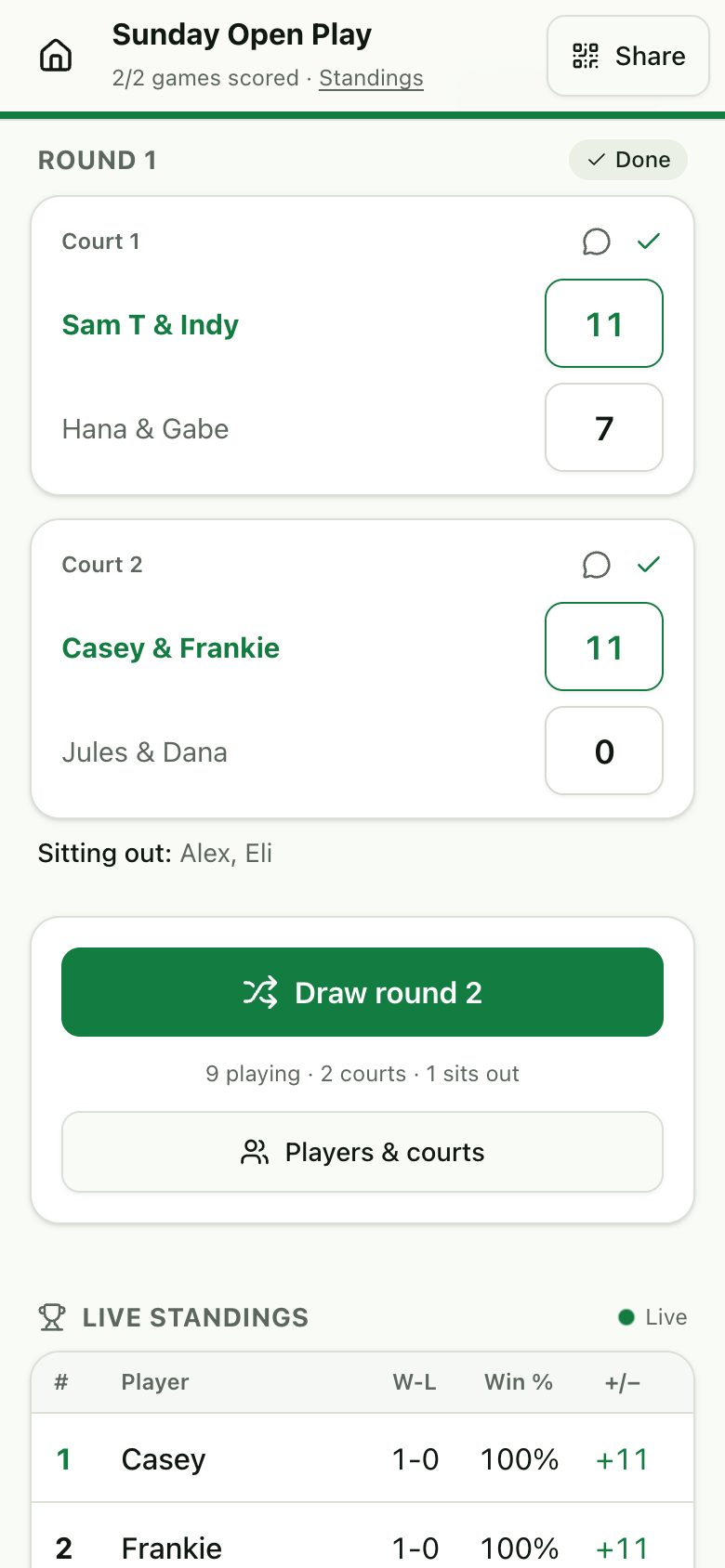
The current round is at the top, with games labeled by court and a “Sitting out” line. Once every game is scored, tap Draw round N to get the next one. Until then the panel says how many games are left.
- If there are too many players for the courts, those who have played the most games sit out, and nobody who sat out last round is picked if it can be avoided. So late arrivals catch up.
- Partners are mixed at random with as few repeats as possible.
- Earlier rounds are listed below, newest first.
- 3
Players and courts
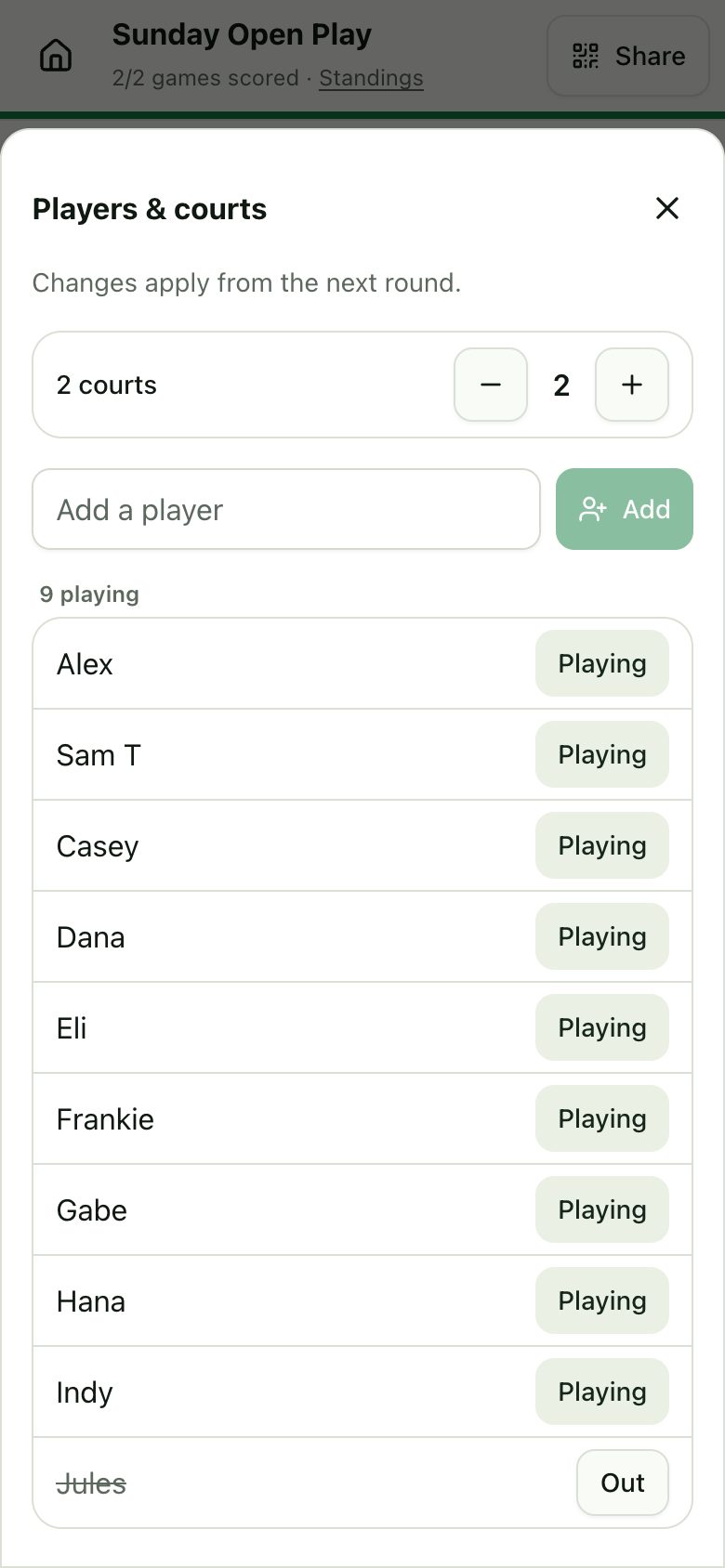
Tap Players & courts to add a player, bring back someone who left, mark someone Out, or change the number of courts. Typing a name shows regulars to pick. Changes apply from the next round.
- Players who leave stay in the standings and history, greyed out with “(left)”.
- 4
Standings, no final
Players are ranked by win percentage, then point differential per game, so people who’ve played fewer games aren’t penalised. There’s no final and no overall winner, and the event never counts as finished: stop whenever you like.
Who sits out?
The players who have played the most games so far, skipping anyone who sat out last round where possible. Ties are broken at random.
Comments
Trash talk and shout-outs on any scored game, plus a thread before the event and one after. Works in every game mode.
Comment on a game
Once a game is scored, its card gets a speech-bubble button, with a count when there are comments. Tap it to read the thread and add your own, up to 200 characters. Anyone with the link can read comments, but only someone who has picked themselves in “Who are you?” can post.
Before it starts
“Talk shit before it starts?” sits at the top of the event page until the first score is entered. Then it’s marked Closed, and if anyone posted it moves down above the standings so it can still be read. If nobody posted, the card just disappears.
Once it’s over
When the event is finished (the final is scored, or every Up & down courts game is scored), “Talk shit now that it’s over?” appears under the results, above the standings. Open play never finishes, so it has no after-event thread.
Like or dislike
Every comment has 👍 and 👎 buttons, with counts once someone reacts. Each phone gets one reaction per comment: tap again to undo it, or tap the other one to switch. Nobody can see who reacted. As with posting, you need to have picked a player: tapping one without that opens “Who are you?”.
Top comments on the share card
In Share results, tick Include top comments to add the three comments with the most reactions to the image. Each shows who wrote it, where it was posted (Final, R2 · Court 1, Pre-game or Post-game) and its 👍 and 👎 counts.
Can I edit or delete a comment?
There’s no editing. The phone that wrote a comment can delete it with the trash button, and the phone that created the event can delete any comment.
Are there limits?
Comments are up to 200 characters, and each phone can post only a few a minute. Post too fast and you’ll see “Slow down a little, then try again”.